
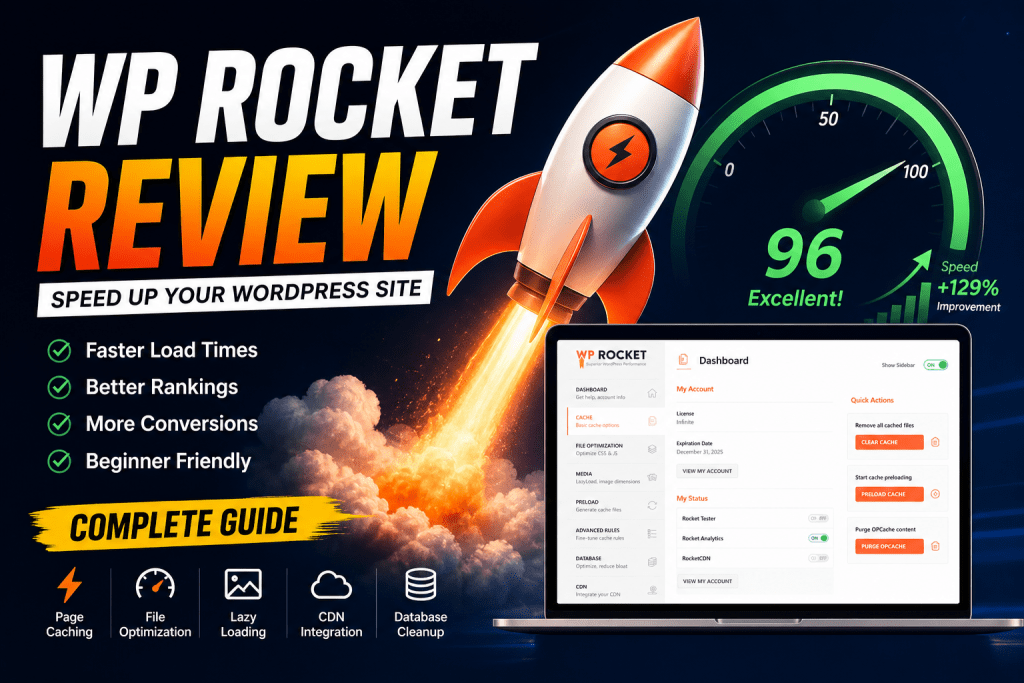
Let’s be honest — a slow website kills everything. It kills your rankings. It kills your conversions. And it definitely kills the patience of anyone trying to visit your pages. If you’re running a WordPress site and you’ve been struggling with slow load times, you’ve probably heard the name WP Rocket come up more than once.
But is it actually worth the price? Does it live up to the hype? And most importantly, can a beginner set it up without breaking their website?
Spoiler: yes, yes, and absolutely yes. In this complete WP Rocket review, I’m going to walk you through everything — what it is, what it does, how to set it up step by step, and how it stacks up against the competition. By the end, you’ll know exactly whether WP Rocket is the right plugin for your site.
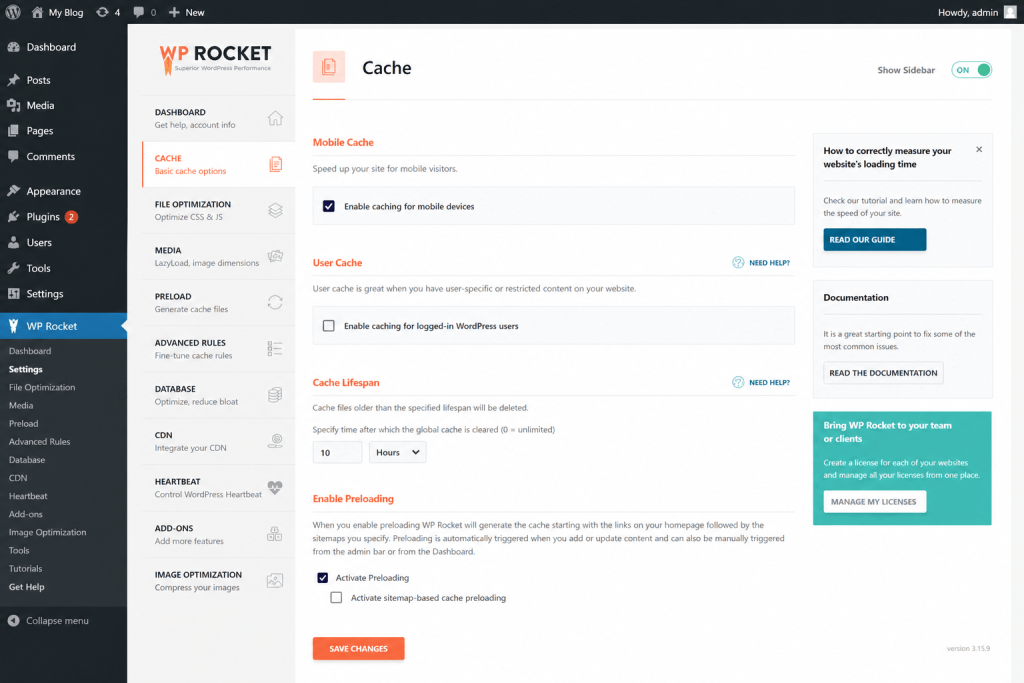
TABLE OF CONTENTS
- 1. What is WP Rocket?
- 2. Key Features of WP Rocket
- 3. Benefits of Using WP Rocket
- 4. How to Install and Set Up WP Rocket (Step-by-Step)
- 5. WP Rocket vs Other Caching Plugins
- 6. Common Mistakes to Avoid
- 7. Conclusion
- 8. Frequently Asked Questions (FAQs)
1. What is WP Rocket?
WP Rocket is a premium WordPress caching and performance optimization plugin developed by WP Media. It was launched in 2013, and since then, it has grown into arguably the most popular paid performance plugin for WordPress — used by over 3 million websites worldwide.
In simple terms, WP Rocket makes your WordPress website load faster. It does this by creating static HTML files of your pages (a process called “caching”) and delivering them to visitors instead of making WordPress generate each page from scratch every single time.
What sets WP Rocket apart from free alternatives like W3 Total Cache or WP Super Cache is its ease of use. You don’t need to be a developer. You just activate the plugin, and it immediately starts improving your site’s speed — no complicated settings required.
2. Key Features of WP Rocket
WP Rocket isn’t a one-trick pony. It packs in a lot of powerful features that cover almost every angle of WordPress performance optimization. Here’s a breakdown of the most important ones:
Page Caching
This is the heart of WP Rocket. The moment you activate the plugin, page caching is enabled automatically. Your pages are saved as lightweight HTML files and served to visitors instantly — reducing your server load significantly.
Browser Caching
WP Rocket adds the right browser caching rules to your server, so returning visitors don’t have to re-download static assets like images, fonts, and scripts. This dramatically cuts load time for repeat visitors.
GZIP Compression
GZIP compresses your web files before sending them to a visitor’s browser, which reduces file sizes by up to 70%. WP Rocket handles this automatically in the background.
File Optimization
Minify and combine CSS and JavaScript files to reduce HTTP requests and overall page weight. This is one of the biggest contributors to faster load times.
Lazy Loading
Images and videos load only when the visitor scrolls down to see them — saving bandwidth and significantly improving initial load time. WP Rocket’s lazy loading is built in and requires no extra plugin.
CDN Integration
WP Rocket works seamlessly with major CDN providers like Cloudflare, BunnyCDN, and its own RocketCDN to serve your assets globally from servers close to your visitors.
Database Optimization
Cleans up post revisions, transients, and spam comments to keep your database lean and fast.
Mobile Cache
Creates a separate cache for mobile visitors, ensuring fast performance on all devices — not just desktop.
Preloading
Preloads pages and links so they’re ready before a user even clicks — making navigation feel almost instant.
DNS Prefetching
WP Rocket prefetches DNS lookups for external resources (like fonts or analytics scripts), saving valuable milliseconds during page load.
Heartbeat Control
WordPress’s Heartbeat API constantly pings your server, which can slow things down on busy sites. WP Rocket lets you control or disable it entirely to free up server resources.
3. Benefits of Using WP Rocket
Sure, WP Rocket has great features. But what does that actually mean for you and your website? Let’s look at the real-world benefits you’ll experience.
Faster Page Load Times
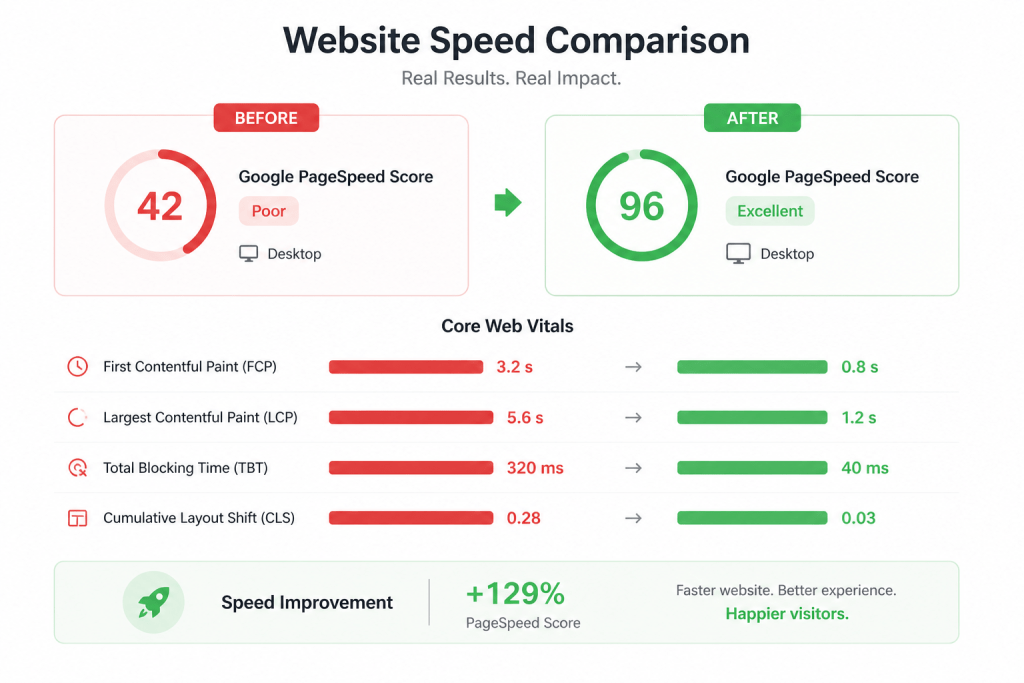
This is the most obvious one. Most users report a 50–80% improvement in page load time after installing WP Rocket. According to Google, pages that load within 1–2 seconds have significantly better conversion rates and lower bounce rates than slower pages.
Better Google Rankings
Google uses page speed as a ranking factor — especially for mobile searches. By improving your Core Web Vitals (LCP, FID, and CLS), WP Rocket can have a direct positive impact on your SEO performance. Faster sites simply rank better.
Better User Experience
Nobody likes waiting for a page to load. A faster site means lower bounce rates, higher engagement, and ultimately more conversions — whether that’s leads, sales, or subscribers.
Beginner-Friendly Setup
Unlike many performance plugins that require technical knowledge, WP Rocket works right out of the box. You activate it and immediately get a performance boost — even before tweaking any settings.
Regular Updates and Great Support
The team behind WP Rocket is consistently active. They release regular updates to stay compatible with new WordPress versions, popular themes, and major plugins. Their support team is also highly rated by the WordPress community.
4. How to Install and Set Up WP Rocket (Step-by-Step)
Ready to get started? Here’s a simple, no-fluff guide to installing and configuring WP Rocket on your WordPress website.
Head over to wp-rocket.me and choose a pricing plan: Single (1 site), Plus (3 sites), or Infinite (unlimited sites). After purchasing, download the plugin ZIP file from your account dashboard.
- Step 1: Upload the Plugin. In your WordPress dashboard, go to Plugins → Add New → Upload Plugin. Select the ZIP file you downloaded from WP Rocket, then click Install Now.
- Step 2: Activate the Plugin. Click Activate Plugin. Caching is already working immediately — WP Rocket enables page caching automatically on activation.
- Step 3: Enter Your License Key. Go to Settings → WP Rocket and enter your license key to unlock all updates and support.
- Step 4: Enable File Optimization. Under the File Optimization tab, enable Minify CSS files and Minify JavaScript files. Test carefully if enabling the combined options.
- Step 5: Enable Lazy Loading. In the Media tab, turn on Enable for images and Enable for iframes and videos. One of the biggest performance wins.
- Step 6: Set Up Preloading. In the Preload tab, enable Activate Preloading so cache is rebuilt automatically after clearing.
- Step 7: Test Your Site Run your site through Google PageSpeed Insights or GTmetrix to compare your before and after performance scores.
5. WP Rocket vs Other Caching Plugins
WP Rocket is great — but how does it compare to other popular caching plugins? Here’s an honest side-by-side comparison:
| Feature | WP Rocket | W3 Total Cache | WP Super Cache | LiteSpeed Cache |
| Price | $59/year (1 site) | Free (Pro: $99) | Free | Free |
| Ease of Setup | ★★★★★ | ★★☆☆☆ | ★★★☆☆ | ★★★★☆ |
| Page Caching | ✔ Auto | ✔ Manual | ✔ Manual | ✔ Auto |
| Lazy Loading | ✔ Built-in | ✘ Needs plugin | ✘ Needs plugin | ✔ Built-in |
| Database Optimization | ✔ Yes | ✔ Yes | ✘ No | ✔ Yes |
| CDN Integration | ✔ Native RocketCDN | ✔ Yes | Limited | ✔ Yes |
| Customer Support | Premium support | Forums only | Forums only | Forums + Docs |
| Works Without Special Server | ✔ Any host | ✔ Any host | ✔ Any host | LiteSpeed hosts only |
The bottom line? WP Rocket costs money, but it compensates with unmatched ease of use, a comprehensive feature set, and excellent support. Free plugins like W3 Total Cache can match its performance — but they require significantly more technical know-how. For most users, especially beginners, WP Rocket is worth every cent.
6. Common Mistakes to Avoid with WP Rocket
WP Rocket is easy to use, but that doesn’t mean there’s nothing to get wrong. Here are the most common mistakes beginners make — and how to avoid them.

Mistake 1: Enabling All Settings at Once
WP Rocket has a lot of options. Turning everything on at once without testing is a recipe for a broken site. Enable settings one section at a time and check your site after each change.
Mistake 2: Using WP Rocket With Another Caching Plugin
Running two caching plugins simultaneously causes conflicts and will almost certainly break your site. Deactivate and remove any other caching plugins (W3 Total Cache, WP Super Cache, etc.) before installing WP Rocket.
Mistake 3: Not Clearing the Cache After Updates
Every time you update a page, post, plugin, or theme, clear your WP Rocket cache. Otherwise, visitors may see outdated content. WP Rocket makes this easy with a one-click “Clear Cache” button in the admin bar.
Mistake 4: Forgetting to Exclude WooCommerce Pages
If you run a WooCommerce store, you need to exclude cart, checkout, and account pages from caching. Thankfully, WP Rocket does this automatically — but if you’re seeing odd cart behavior, double-check your exclusions.
Mistake 5: Ignoring “Delay JavaScript Execution” Warnings
The “Delay JS Execution” feature can greatly improve performance — but it can also break interactive features on your site if not configured correctly. Always test your forms, sliders, and popups after enabling it.
7. Conclusion
So — is WP Rocket worth it? If your website speed matters to you (and it absolutely should), then yes, without a doubt.
WP Rocket isn’t the only caching plugin out there, and it’s certainly not free. But what you’re paying for is simplicity, reliability, and results. You don’t have to be a developer to get a fast website. There’s no need to spend hours digging through documentation or watching endless tutorials. Simply install the plugin, activate it, and let it handle the rest automatically.
Whether you’re running a simple blog, a business website, or a full-blown WooCommerce store, WP Rocket will have a measurable positive impact on your load times, your Core Web Vitals scores, and ultimately your search engine rankings.
If you’re serious about growing your WordPress site and giving your visitors the best possible experience, WP Rocket is one of the smartest investments you can make. Try it, test your speed, and see the difference for yourself.
8. Frequently Asked Questions (FAQs)
Q1. Is WP Rocket worth the money?
Yes, for most WordPress users — especially beginners. Starting at $59/year for a single site, it delivers immediate performance improvements with minimal setup time. The time you save troubleshooting free alternatives often justifies the cost.
Q2. Does WP Rocket work with all WordPress themes?
In almost all cases, yes. WP Rocket is built to be compatible with the most popular WordPress themes and page builders, including Elementor, Divi, Astra, GeneratePress, OceanWP, and more.
Q3. Can I use WP Rocket on a WooCommerce site?
Absolutely. WP Rocket is WooCommerce-compatible and automatically excludes cart, checkout, and account pages from caching — which is crucial for WooCommerce to function correctly.
Q4. Does WP Rocket offer a free trial or money-back guarantee?
WP Rocket does not offer a free trial, but they do provide a 14-day money-back guarantee. If you’re not satisfied within 14 days of purchase, you can request a full refund — no questions asked.
Q5. Will WP Rocket break my website?
WP Rocket is generally very safe to use. However, enabling certain advanced features — particularly JavaScript file combining or delaying JS execution — can sometimes conflict with specific themes or plugins. Always enable settings gradually and test your site after each change.
Q6. Does WP Rocket help with Google Core Web Vitals?
Yes, significantly. Lazy loading improves Largest Contentful Paint (LCP). Deferring non-critical JavaScript reduces First Input Delay (FID). Many users see measurable improvements in their Google PageSpeed Insights scores within minutes of installation.
Q7. Is WP Rocket available in the WordPress.org plugin repository?
No. WP Rocket is a premium plugin and is only available for purchase directly from wp-rocket.me. Be wary of any third-party sites offering WP Rocket for free — those are almost certainly nulled (pirated) versions that may contain malware.
Follow WPExtent for More Insights
Get practical WooCommerce tips, conversion strategies, and real-world insights to grow your online business.
We Are Available On:
Instagram:
https://www.instagram.com/thewpextent
Twitter (X):
https://x.com/TheWPExtent
Reddit:
https://www.reddit.com/user/WPExtent/



Leave a Reply