
Introduction
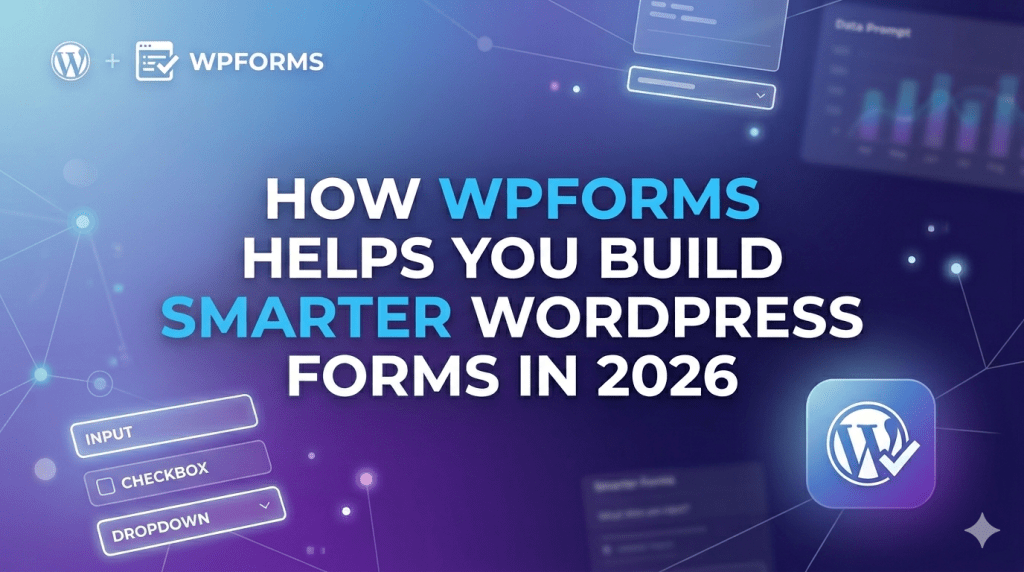
If you’ve been searching for a reliable WPForms WordPress form builder, then you’re in the right place. Whether you need a simple contact form or a complex multi-step survey, WPForms makes the entire process surprisingly easy. In fact, it has become one of the most popular form plugins in the WordPress ecosystem — and for good reason. Moreover, its user-friendly design ensures that even beginners can create professional-looking forms without any hassle. As a result, you can build and manage forms quickly without needing any coding skills.
In this post, we’ll walk through everything you need to know about WPForms. We’ll cover its key features, pricing, pros and cons, and how it compares to other options. By the end of this guide, you’ll clearly understand whether WPForms is the right tool for your website.

Table of Contents
1. What Is WPForms?
2. Key Features of WPForms
3. WPForms Pricing Plans
4. How to Set Up WPForms in WordPress
5. WPForms vs Other Form Builders
6. Pros and Cons of WPForms
7. Who Should Use WPForms?
8. Final Verdict
9. FAQ
1. What Is WPForms?
WPForms is a beginner-friendly WordPress form plugin that lets you create beautiful forms in minutes. It was built by Syed Balkhi, the team behind WPBeginner — one of the largest WordPress tutorial sites in the world. So, as you might expect, the plugin is deeply focused on ease of use.
At its core, WPForms uses a simple drag-and-drop builder. Therefore, you don’t need to write a single line of code. You just pick the fields you want, drag them into your form, and you’re done. It’s honestly that straightforward.
Currently, WPForms powers over 6 million websites worldwide. That alone tells you a lot about its reliability and reputation.
2. Key Features of WPForms
WPForms comes packed with features that make it stand out from other form plugins. Here’s a look at some of the most important ones:
Drag-and-Drop Form Builder for WordPress
The drag-and-drop editor is the heart of WPForms. It’s incredibly smooth and responsive. You simply drag fields from the left panel and drop them into your form. Additionally, you can rearrange fields with ease. As a result, building a form feels more like playing than working.
Smart Conditional Logic
With WPForms, you can show or hide fields based on what users select. For example, if someone picks “Business” as their account type, you can automatically reveal a field asking for their company name. This makes forms smarter and less cluttered for users.
Pre-Built Form Templates
WPForms offers over 1,800 pre-built templates. Consequently, you don’t have to start from scratch every time. There are templates for contact forms, payment forms, survey forms, registration forms, and much more. Simply pick a template, customize it, and publish.
Multi-Page Forms
Long forms can feel overwhelming. Fortunately, WPForms lets you break them into multiple pages. This keeps users engaged and reduces form abandonment rates. Each page acts like a step in the process, which is especially useful for applications or checkouts.
Payment and E-commerce Integrations
WPForms integrates directly with Stripe, PayPal, Square, and Authorize.net. Therefore, you can easily collect payments right inside your forms. This is perfect for selling products, accepting donations, or collecting registration fees.
Email Marketing Integrations
You can connect WPForms to popular email tools like Mailchimp, Constant Contact, AWeber, and Drip. So, every time someone submits a form, their information can go directly into your email list. This is a huge time-saver for growing your audience.
Spam Protection
WPForms includes built-in spam protection through Google reCAPTCHA, hCaptcha, and its own AI-powered spam filtering called “Custom Captcha.” As a result, you can stop bots from filling your inbox with junk submissions.
3. WPForms Pricing Plans
WPForms offers both a free version and several premium plans. To help you choose easily, here’s a quick breakdown:
• WPForms Lite (Free): First of all, this option is ideal for beginners. It includes a basic contact form for one site, along with a limited number of templates.
• Basic Plan ($49.50/year): In addition, this plan is designed for single-site owners. It unlocks core features and also includes email marketing integrations.
• Plus Plan ($99.50/year): Moreover, this plan is suitable for growing projects. It supports up to three sites and, at the same time, adds payment integrations and user registration features.
• Pro Plan ($199.50/year): Furthermore, advanced users can benefit from this plan. It includes support for five sites, Stripe payments, surveys, and polls.
• Elite Plan ($299.50/year): Finally, this is the most powerful option. It is designed for agencies and large-scale users, offering unlimited site usage, priority support, and advanced features.
Note: Prices are based on the introductory/discounted rate at the time of writing. Additionally, all plans come with a 14-day money-back guarantee, so you can try them risk-free.

4. How to Set Up WPForms in WordPress
Getting started with WPForms is very simple. Follow these steps to install and create your first form:
1. Go to your WordPress dashboard and navigate to Plugins > Add New.
10. Search for “WPForms” and click Install Now.
11. After installation, click Activate to enable the plugin.
12. Go to WPForms > Add New in your dashboard.
13. Choose a template or start from scratch with a blank form.
14. Use the drag-and-drop builder to add and arrange your fields.
15. Configure your form settings, including email notifications.
16. Click Save, then embed the form in any page or post using the WPForms block.
That’s all it takes. Even if you’ve never used a form plugin before, you’ll likely have your first form live within 10 minutes.
5. WPForms vs Other Form Builders
How does the WPForms WordPress form builder compare to its main competitors? Let’s take a quick look:
WPForms vs Gravity Forms
Gravity Forms is powerful, but it has a steeper learning curve. Moreover, it doesn’t offer a free version. WPForms, on the other hand, is easier for beginners and comes with a free plan. Gravity Forms may be better for developers building complex custom solutions.
WPForms vs Contact Form 7
Contact Form 7 is free and simple, but it lacks a visual editor. Everything is done through shortcodes. Therefore, it’s harder for beginners to use. WPForms is far more user-friendly and comes with much better support.
WPForms vs Ninja Forms
Ninja Forms offers a free plan similar to WPForms. However, many of its key features are locked behind expensive add-ons. WPForms bundles more functionality at lower overall prices, making it a better value for most users.
6. Pros and Cons of WPForms
✅ Pros
• One of its biggest strengths is the extremely beginner-friendly drag-and-drop interface.
• Additionally, it offers 1,800+ ready-to-use form templates.
• Another powerful feature is smart conditional logic, which allows you to create dynamic forms easily.
• It also works smoothly with major payment gateways.
• Moreover, it provides excellent email marketing integrations.
• On top of that, WPForms includes strong spam protection tools.
• Users also benefit from reliable customer support.
• Finally, it stays up to date with active development and regular updates.
❌ Cons
• However, the free version is quite limited compared to the premium plans.
• In addition, advanced features are only available in higher-tier subscriptions.
• Lastly, annual pricing can become expensive for users on a tight budget.
7. Who Should Use WPForms?
WPForms is suitable for a wide range of users. In particular, it works very well for the following groups:
• Bloggers can easily add a simple contact form to their website.
• Small business owners can efficiently capture leads and customer inquiries.
• Nonprofits may use it to create donation forms or volunteer sign-up pages.
• E-commerce stores can accept orders or handle custom quote requests with ease.
• Educators are able to build registration forms or quizzes for online courses.
• Agencies can manage forms across multiple client websites without difficulty.
Basically, if you run a WordPress website and need any type of form, WPForms is worth considering. Furthermore, its ease of use means you won’t need to hire a developer to get things working.
8. Final Verdict — Is WPForms the Right WordPress Form Builder for You?
After reviewing all its features, pricing, and usability, it’s clear that WPForms is one of the best WordPress form builder plugins available today. It strikes the perfect balance between simplicity and power. Whether you’re a beginner setting up your first website or a developer managing multiple client projects, WPForms delivers where it matters most.
The drag-and-drop interface, smart features, and reliable integrations make it genuinely enjoyable to use. Therefore, we highly recommend giving WPForms a try — especially since you can start completely free.
👉 Ready to get started? Download WPForms today and create your first form in minutes. Your visitors will thank you.
FAQ — Frequently Asked Questions About WPForms
Q1: Is WPForms free to use?
Yes, WPForms offers a free version called WPForms Lite. However, the free plan has limited features. Therefore, if you need payment integrations, conditional logic, or advanced templates, you’ll want to upgrade to a paid plan.
Q2: Does WPForms slow down my WordPress website?
No, WPForms is built with performance in mind. It loads its scripts only on pages where a form is actually embedded. As a result, it has a minimal impact on your site’s load time and performance scores.
Q3: Can I use WPForms to collect payments?
Absolutely. WPForms integrates with Stripe, PayPal, Square, and Authorize.net. So, you can easily create order forms, donation forms, or event registration forms that accept real payments directly on your website.
Q4: Is WPForms compatible with all WordPress themes?
Yes, WPForms is designed to work with virtually any WordPress theme. It follows standard WordPress coding practices, so compatibility issues are extremely rare. Additionally, you can always style your forms using custom CSS if needed.
Q5: How many forms can I create with WPForms?
There’s no limit on the number of forms you can create. Whether you’re on the free plan or a premium plan, you can build as many forms as your website needs. Each plan, however, has a limit on the number of sites you can use the plugin on.
📋 SCHEMA MARKUP NOTE (For Developers)
The FAQ section above is written in a schema-ready format. To add FAQ schema markup, use the Yoast SEO plugin’s FAQ block, or manually add FAQPage JSON-LD structured data to your page head. This helps your FAQ answers appear as rich results in Google Search.
Follow WPExtent for More Insights
Get practical WooCommerce tips, conversion strategies, and real-world insights to grow your online business.
We Are Available On:
Instagram:
https://www.instagram.com/thewpextent
Twitter (X):
https://x.com/TheWPExtent
Reddit:
https://www.reddit.com/user/WPExtent/


Leave a Reply