
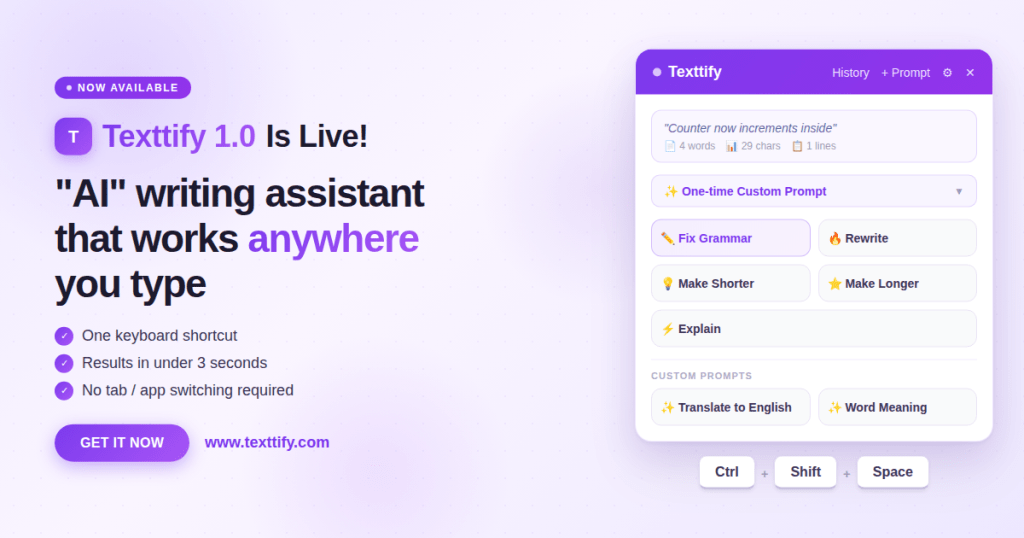
You’re writing an email, editing a document, or adding a comment in code. Suddenly, you notice a grammar mistake, an awkward sentence, or a paragraph that needs to sound more professional.
The usual workflow looks like this: copy the text, open an AI tool in another tab, paste the text, wait for the response, copy the result again, and return to your original app.
By the time you finish, your focus is already broken.
There’s a better way. Instead of constantly switching tabs, you can use an AI tool that works directly inside the apps you already use. This guide shows how to fix grammar, rewrite sentences, translate text, and summarize content instantly using AI without leaving your current app.
Meet Texttify — AI That Works Anywhere You Type
Texttify is a lightweight desktop AI writing assistant that works on Windows and macOS. It brings AI directly into any application where you type.
That means you can use it inside:
• Google Docs
• VS Code
• Slack
• Email clients
• Notion
• Web browsers
• Or any text field on your computer
Instead of opening another tool or copying text between apps, Texttify lets you use AI instantly from wherever you’re already working.
There are many features inside Texttify, and the easiest way to explore them is simply to download the app and try it yourself.
You can download it from – Texttify
How Texttify Works
Texttify is designed to be simple and extremely fast. The workflow only takes a few seconds.
- Select any text in any application
- Press Ctrl + Shift + Space (you can also set a custom hotkey if you prefer).
- Choose the AI action you want
Texttify processes the text instantly and returns the improved version without you leaving the app.
This means no more switching tabs, copying text, or breaking your focus.
Below is a GIF that shows exactly how Texttify works in real time.

Caption suggestion:
Example: Select text, press Ctrl + Shift + Space, and apply an AI action instantly without leaving your current application.
What You Can Do With Texttify
Texttify includes several AI actions that help improve your writing quickly.
Fix Grammar and Spelling
If your sentence has grammar mistakes or punctuation errors, the Grammar Fix action corrects it instantly.
Rewrite Sentences
The Rewrite action improves clarity and makes your writing sound more natural.
Translate Text
Texttify can also translate selected text into other languages instantly. This is especially helpful for people working with international clients or multilingual content.
Summarize Content
If you have a long paragraph or article, the Summarize action extracts the key ideas and shortens the text.
All of these actions happen inside the app you’re already using, making the process fast and distraction-free.
Start FREE With 20 AI Actions
Texttify offers a free plan so you can try the tool without any risk.
New users can start with 20 AI actions for free, which is enough to experience how the workflow works.
Below is a screenshot showing how the free actions appear inside the app.

Caption suggestion:
Texttify offers a free start with 20 AI actions so users can test the AI workflow instantly.
For users who rely on AI regularly, the Pro plan unlocks additional features such as unlimited AI actions, custom prompts, advanced AI models, and priority support.
You can explore all options by downloading the app from- Texttify
Create Your Own Custom AI Prompts
One of the most powerful features of Texttify is the ability to create custom prompts.
Instead of relying only on built-in actions, you can create prompts for specific tasks.
For example:
• Generate SEO titles
• Explain complex text in simple language
• Convert text into bullet points
• Rewrite content in a specific tone
• Improve customer support responses
Where to Create Custom Prompts
Custom prompts can be created inside the Prompts section in Texttify settings.
Below is a screenshot showing where you can create and manage custom prompts inside the app.
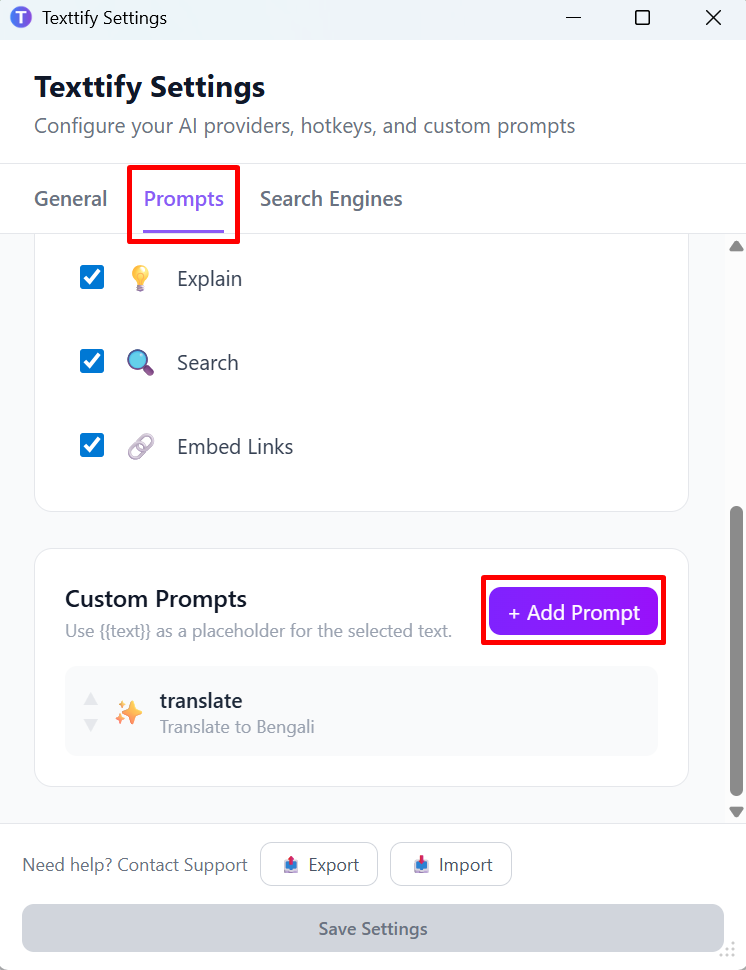
Caption suggestion:
Create and manage custom AI prompts inside the Texttify settings panel.
Steps to Create a Prompt
- Open Texttify Settings
- Go to the Prompts tab
- Click + Add Prompt
- Write your prompt using {{text}} as the placeholder
- Save the prompt
Once saved, the prompt will appear in the AI pop-up menu when you select text.
Below is a GIF that demonstrates how to create and apply a custom prompt in Texttify.

Caption suggestion:
Creating and applying a custom AI prompt in Texttify.
Personalization and Appearance
Texttify also allows you to personalize the app to match your workspace.
Color Mode (Light / Dark / Auto)
You can switch between Light mode, Dark mode, or Auto mode depending on your system theme.
Below is a screenshot showing the appearance settings where you can change the color mode.
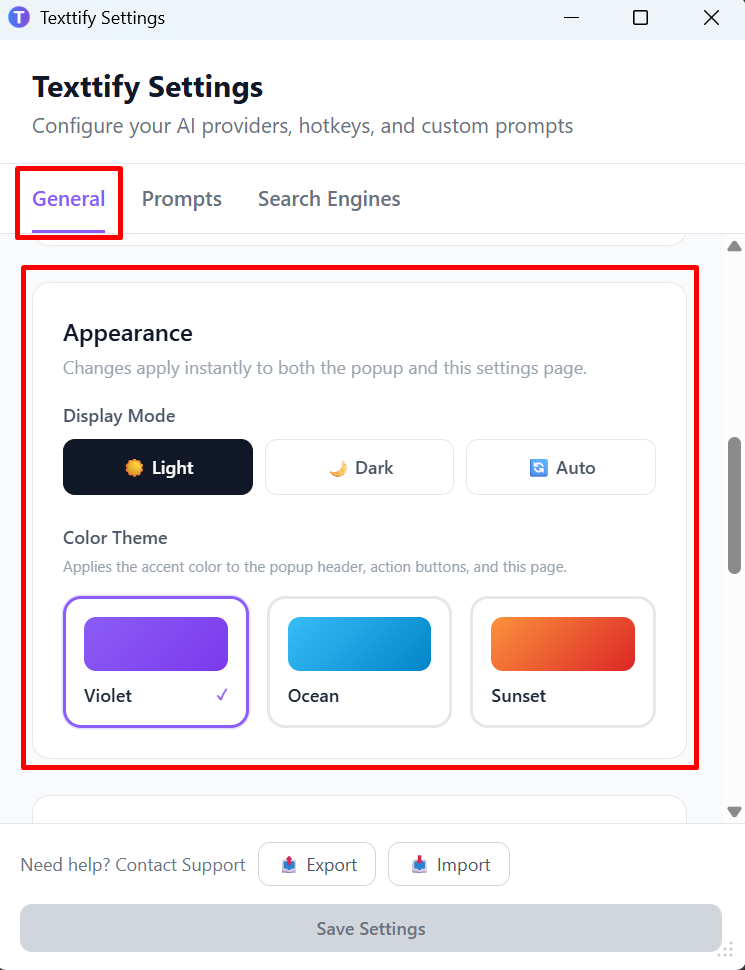
Caption suggestion:
Switch between Light, Dark, or Auto mode to match your system theme.
Automatic Link Embedding
Another useful feature in Texttify is Auto-Embed Links.
When this option is enabled, Texttify automatically detects links in AI responses and converts them into clickable URLs.
This saves time because you don’t need to manually format links.
Below is a screenshot showing the link embed option inside the settings.
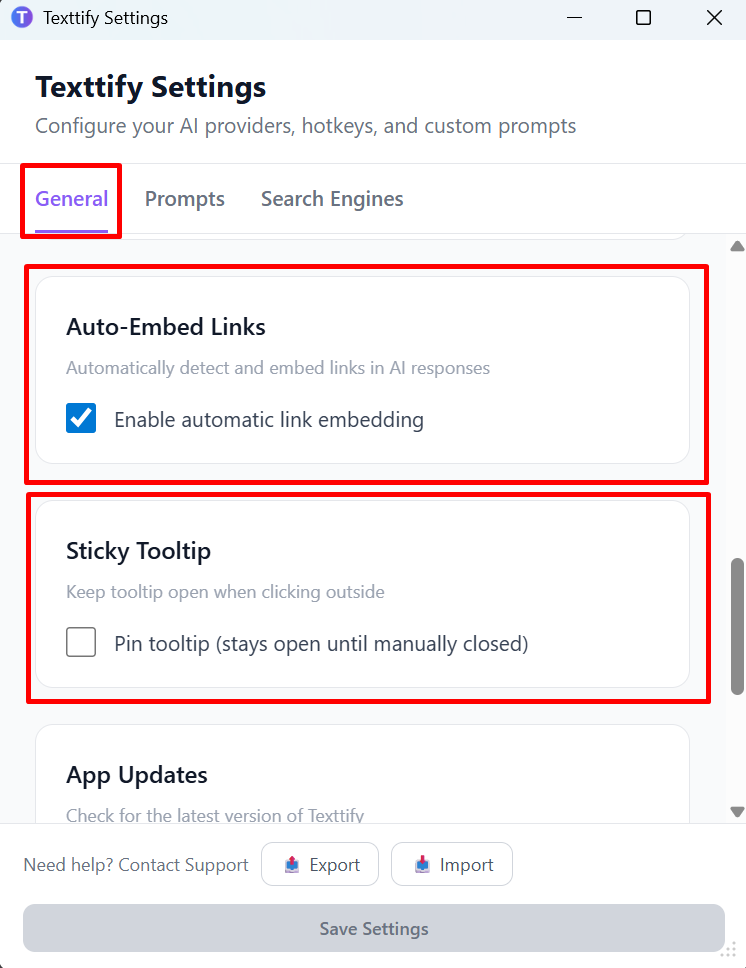
Caption suggestion:
Automatically convert URLs into clickable links in AI responses.
Textify has many more features
The features shown here are only a small part of what Texttify can do.
Texttify includes many other tools designed to make writing, editing, and communication faster across different applications.
The best way to explore everything is simply to download the app and try it in your daily workflow.
Once installed, you’ll immediately see how convenient it is to use AI directly where you type.
Download Texttify here:
https://www.texttify.com/
Conclusion
AI writing tools are powerful, but constantly switching tabs to use them slows you down and interrupts your focus.
Texttify solves this problem by bringing AI directly into the applications you already use.
With a simple keyboard shortcut, you can fix grammar, rewrite text, translate content, summarize information, and even run custom AI prompts without leaving your current app.
If you want a faster and smoother way to use AI while writing, download Texttify and try the free 20 AI actions today. It’s one of the easiest ways to bring AI assistance directly into your everyday workflow.




Leave a Reply