
Introduction
Every WordPress website you visit is powered by something quietly working behind the scenes: a database. The WordPress database structure is the backbone of your entire site. It stores everything from your blog posts and pages to your user accounts, comments, plugin settings, and theme preferences.
Understanding how this database is organized does not require you to be a developer. However, even a basic familiarity with the WordPress database structure helps you troubleshoot problems, improve website performance, and make smarter decisions when choosing plugins or themes.
In this guide, we will walk through the key database tables, explain how WordPress uses them, and share practical tips for keeping your database clean and optimized.
What Is the WordPress Database Structure?
A database is an organized collection of data that can be accessed, managed, and updated efficiently. Think of it as a highly structured filing cabinet where every piece of information has a specific drawer and folder.
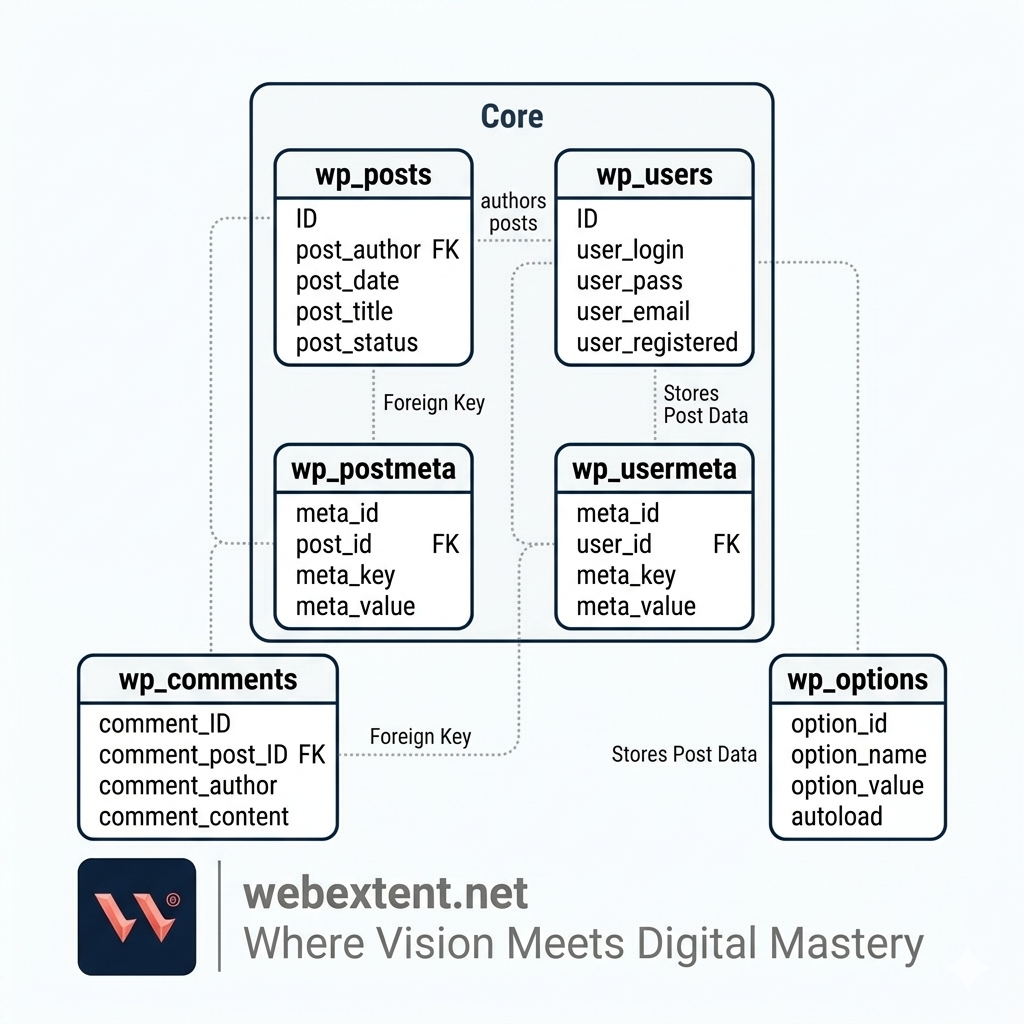
WordPress uses a relational database management system, specifically MySQL or MariaDB, to store all of its data. When you publish a blog post, WordPress does not save it as a file on your server. Instead, it saves it as a record in the database.
This is what makes WordPress a dynamic website platform. Unlike static HTML pages, WordPress assembles each page on the fly by pulling the relevant data from the database and combining it with your active theme’s templates.
Without a properly functioning database, your website simply cannot work. That is why understanding its structure is so valuable, whether you are a website owner, blogger, or developer.
How WordPress Connects to Its Database
WordPress connects to its database using a special configuration file called wp-config.php. This file lives in the root directory of your WordPress installation and contains the database credentials your site needs to communicate with the database server.
The four key credentials stored in wp-config.php are:
- DB_NAME – The name of the database WordPress uses.
- DB_USER – The username used to access the database.
- DB_PASSWORD – The password associated with that username.
- DB_HOST – The server location of the database, usually set to localhost.
Every time someone visits your website, WordPress reads these credentials and opens a connection to the database to retrieve the necessary data. If any of these details are incorrect, your site will display a database connection error.
Default WordPress Database Tables
A standard WordPress installation creates a set of core tables in the database. By default, each table name starts with the prefix wp_ (though this can be changed for security reasons).
In total, WordPress creates 12 default database tables, but the ones explained below are the most commonly used and the most important for understanding how WordPress stores content and settings.
wp_posts
The wp_posts table is the heart of your WordPress database. It stores a wide range of content types, including:
- Blog posts and articles
- Static pages
- Image and media attachments
- Navigation menu items
- Custom post types created by themes or plugins
Each record in this table has a post_type field that tells WordPress what kind of content it is. This is a flexible system that allows WordPress to serve multiple content types from a single table.
wp_postmeta
The wp_postmeta table stores additional metadata for posts. Every record in this table is linked to a post by its ID. Common examples of metadata include custom field values, SEO data added by plugins like Yoast SEO, featured image IDs, and WooCommerce product details.
This table can grow quite large over time, especially if you use many plugins that store per-post data. Cleaning up orphaned metadata is one of the best ways to keep your database lean.
wp_users
As you might expect, the wp_users table holds your website’s user accounts. For every registered user, this table stores the username, email address, hashed password, display name, and registration date.
WordPress hashes passwords using a secure algorithm, meaning raw passwords are never stored in plain text. This is an important security feature built directly into the core database design.
wp_usermeta
Similar to wp_postmeta, the wp_usermeta table stores extended information about users. This includes user roles and capabilities, personal preferences, dashboard settings, and any extra data added by plugins such as WooCommerce customer details or membership levels.
wp_comments
The wp_comments table manages all comments on your site. Each comment record includes the content of the comment, the commenter’s name, email, and website, the IP address, and its approval status (approved, pending, or spam).
Spam comments, in particular, can pile up quickly and add unnecessary bulk to your database. Regularly clearing spam and unapproved comments is a simple but effective maintenance task.
wp_options
The wp_options table acts as a central settings store for your WordPress installation. It holds your site’s general configuration, active theme and plugin settings, widget data, and scheduled task details.
This table is also notorious for growing excessively large. Many plugins write data here that never gets removed, even after the plugin is deleted. Bloated wp_options tables are one of the leading causes of slow admin dashboards and poor database performance.
How the WordPress Database Structure Works Behind the Scenes
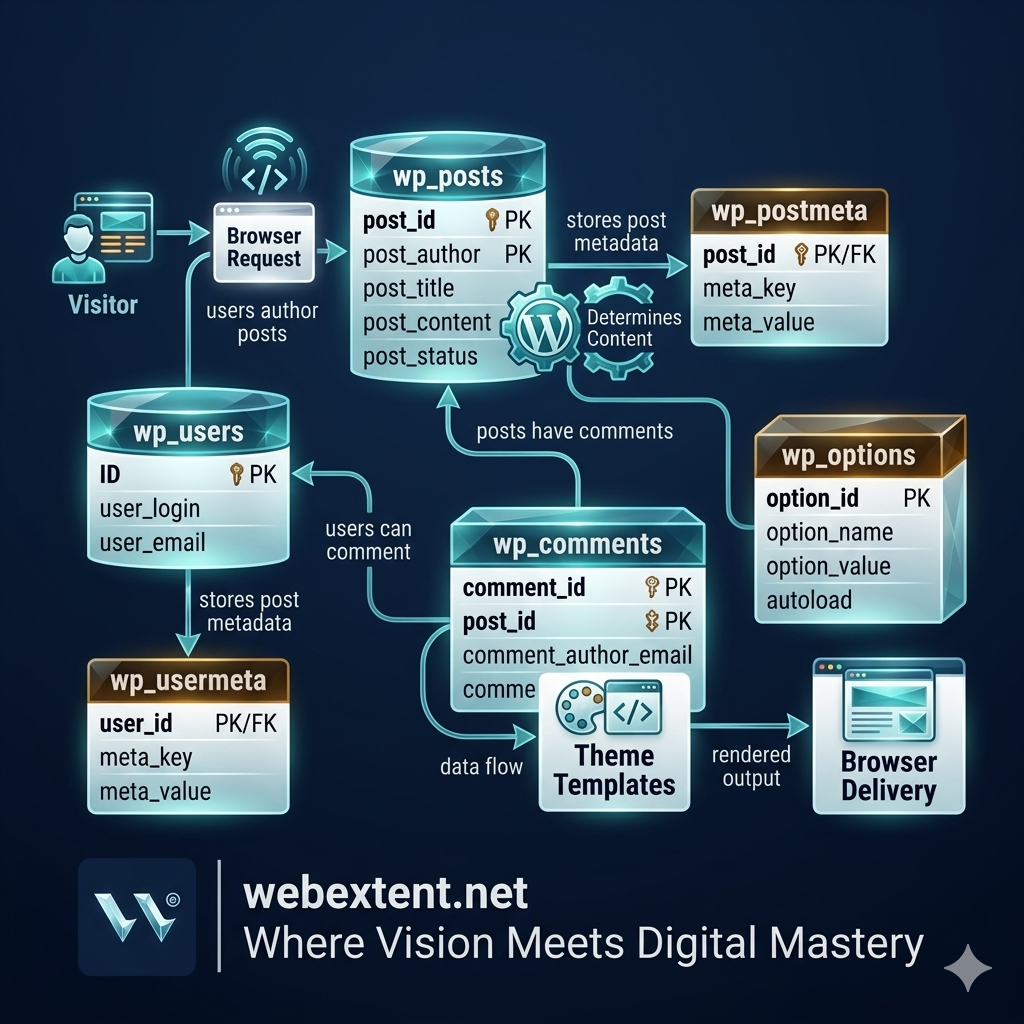
Every time someone visits a page on your WordPress site, a series of database interactions takes place in the background. Here is a simplified look at what happens:
- A visitor requests a page by clicking a link or typing a URL.
- WordPress reads the request and determines what content is needed.
- It queries the database, pulling data from the relevant tables such as wp_posts, wp_postmeta, and wp_options.
- The data is passed to your active theme’s templates, which assemble the final HTML page.
- The fully built page is then delivered to the visitor’s browser.
This process happens in milliseconds, but it relies entirely on the database being fast and efficient. A poorly optimized database can add significant load time to every page request.
How Plugins and Themes Use the WordPress Database
Plugins and themes extend WordPress functionality, and most of them interact with the database in some way. A contact form plugin, for example, might save form submissions as database records. An ecommerce plugin like WooCommerce creates its own set of custom tables to manage orders, products, and customers.
Common ways plugins interact with the database include:
- Storing plugin settings in the wp_options table
- Saving metadata against posts or users
- Creating entirely new custom database tables
- Logging analytics events or ecommerce transactions
- Caching data using transients stored in wp_options
The key issue here is plugin quality. Poorly coded plugins can add unindexed data, run inefficient queries, or leave behind large amounts of data when deactivated. Over time, this database clutter can noticeably slow down your website.
WordPress Database Optimization Best Practices
Keeping your WordPress database optimized is one of the most effective things you can do to maintain a fast, secure website. Here are the key practices to follow:
- Delete post revisions: WordPress automatically saves revisions every time you edit content. Over time, these add up. You can safely delete old revisions or limit how many WordPress saves.
- Remove spam and unapproved comments: These sit in the database doing nothing useful. Clear them out regularly.
- Clean up transient data: Transients are temporary data stored in wp_options. Expired transients that have not been automatically cleaned up can add significant bloat.
- Optimize database tables: Similar to defragmenting a hard drive, you can use tools like phpMyAdmin or a plugin to run OPTIMIZE TABLE commands on your database.
- Remove unused plugin data: Before deleting a plugin, check whether it leaves data behind. Use a database auditing tool to find and remove orphaned plugin tables or rows.
- Schedule regular maintenance: Set up automated database maintenance tasks using a plugin or your hosting control panel to keep things clean on a regular schedule.
These steps improve not only performance but also security, since a smaller, cleaner database has a reduced attack surface. By regularly maintaining your WordPress database structure, you ensure faster page loads, improved security, and a reliable website experience for all visitors.
Common WordPress Database Issues
Even with good maintenance habits, WordPress database problems can occur. Here are the most common issues website owners encounter:
- Slow database queries: Caused by missing indexes, inefficient plugin code, or an oversized database. These slow down every page load.
- Oversized wp_options table: Happens when plugins write autoloaded data without cleaning it up. A bloated options table forces WordPress to load large amounts of data on every single page request.
- Orphaned metadata: When posts or users are deleted, their associated metadata records in wp_postmeta and wp_usermeta are not always removed. These orphaned rows waste space.
- Leftover plugin tables: Deactivated or deleted plugins sometimes leave entire custom database tables behind. These serve no purpose but continue to consume space.
- Corrupted tables: Caused by unexpected server crashes, interrupted writes, or hardware issues. A corrupted table can make content inaccessible or cause errors across your site.
Recognizing these problems early can save you a significant amount of time and prevent bigger issues from developing.
How WebExtent Helps Businesses Manage WordPress Databases
Managing a WordPress database effectively requires both technical knowledge and ongoing attention. That is where WebExtent comes in.
WebExtent is a professional web development and WordPress management service that helps businesses of all sizes keep their websites performing at their best. Their team understands the complexities of WordPress database architecture and takes a proactive approach to database health.
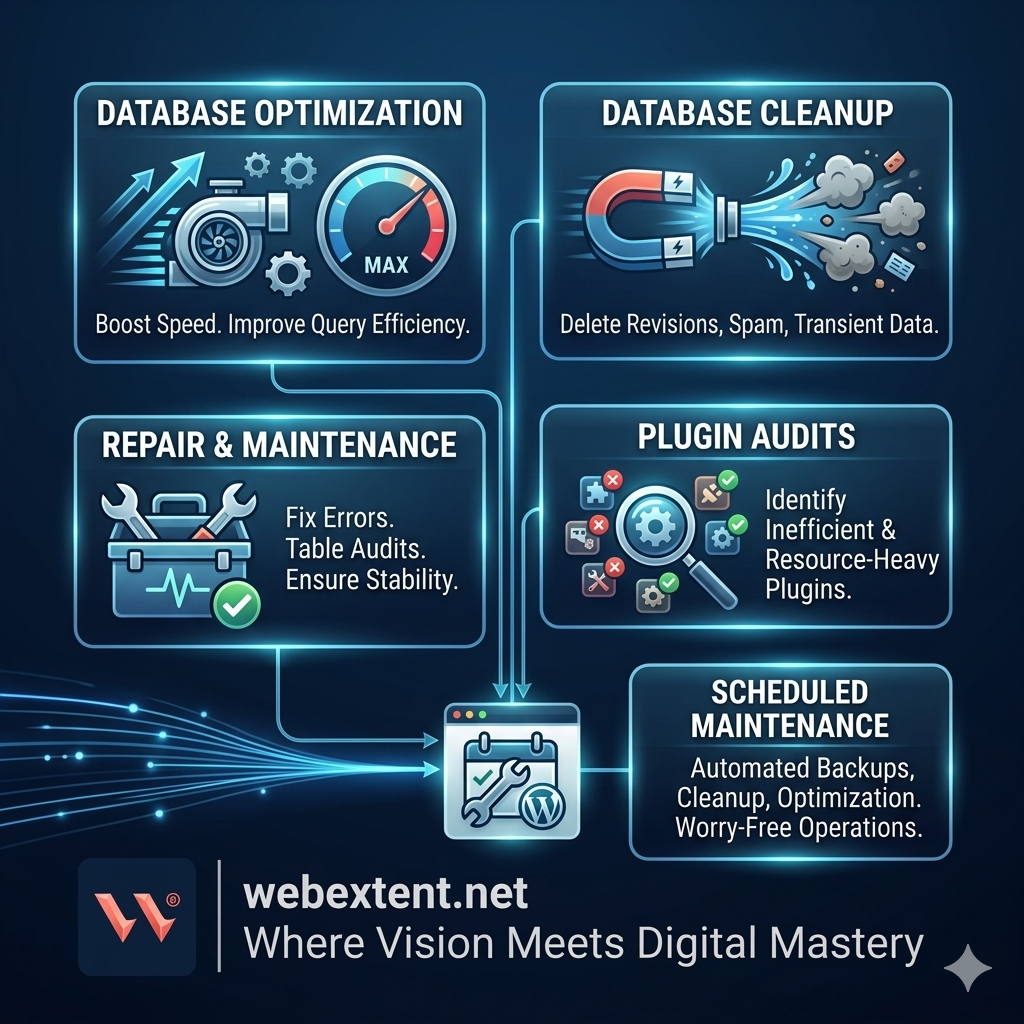
WebExtent’s WordPress database services include:
- WordPress database optimization and cleanup
- Website performance tuning and speed improvements
- Database table repair and corruption recovery
- Plugin database audits to identify and remove harmful data
- Scheduled WordPress maintenance and management plans
Whether you are running a small business website or a high-traffic WooCommerce store, WebExtent provides the technical expertise to ensure your database never becomes a bottleneck.
Frequently Asked Questions
What database does WordPress use?
WordPress uses MySQL or MariaDB as its database management system. Both are relational database systems and are widely supported by virtually all web hosting providers. MariaDB is a community-developed fork of MySQL and is increasingly common on modern hosting environments.
How many tables are in a default WordPress database?
A fresh WordPress installation creates 12 default database tables. These cover core functionality including posts, pages, comments, users, and site settings. Plugins and themes can add additional tables on top of these defaults.
Can I edit my WordPress database safely?
You can edit your WordPress database directly using a tool like phpMyAdmin, but it should be done with extreme caution. Always take a full database backup before making any manual changes. An error in the database can break your site entirely. For most tasks, using a reputable plugin or working with a developer is the safer approach.
How do I optimize my WordPress database?
You can optimize your WordPress database by deleting post revisions, clearing spam comments, removing expired transients, cleaning up orphaned metadata, and running table optimization commands. Plugins such as WP-Optimize or Advanced Database Cleaner can automate most of these tasks safely.
What happens if the WordPress database is corrupted?
A corrupted WordPress database can cause a range of problems, from specific content becoming inaccessible to the entire site going offline. In many cases, you can repair corrupted tables using phpMyAdmin or by adding a recovery constant to your wp-config.php file. In severe cases, restoring from a recent backup is the most reliable solution, which is why regular backups are essential.
Conclusion
The WordPress database structure is fundamental to everything your website does. From storing your content to managing users and processing plugin data, the database is always working in the background. Understanding your WordPress database structure is essential for anyone managing a website, ensuring both stability and performance.
The key takeaways are straightforward. WordPress relies on MySQL or MariaDB to store all of its data across a set of core tables. Each table serves a specific purpose, and keeping them clean and optimized directly impacts how fast and stable your website is. Regular database maintenance is not optional — it is essential for any serious WordPress website.
If you want expert support managing your WordPress database, WebExtent’s experienced team is ready to help. From performance audits to full database management, they bring the technical depth your site deserves.
Subscribe to Us on YouTube
Get exclusive tutorials, behind-the-scenes content, and expert insights delivered directly to your feed.
We Are Available On:
Facebook:
https://facebook.com/webextent.net/
Instagram:
https://www.instagram.com/webextentofficial/
Twitter (X):
https://twitter.com/WebExtent


Leave a Reply