

Managing multiple websites can quickly become a logistical nightmare — separate logins, separate updates, separate everything. WordPress Multisite solves that problem elegantly. It lets you run an entire network of websites from a single WordPress installation, saving you time, money, and a whole lot of frustration.
Whether you’re a developer managing client sites, an educator running course subdomains, or a business with multiple regional sites, WordPress Multisite is a powerful tool worth understanding.
This guide explains exactly what WordPress Multisite is, who it’s for, and how to set it up step by step in 2026.
What Is WordPress Multisite?
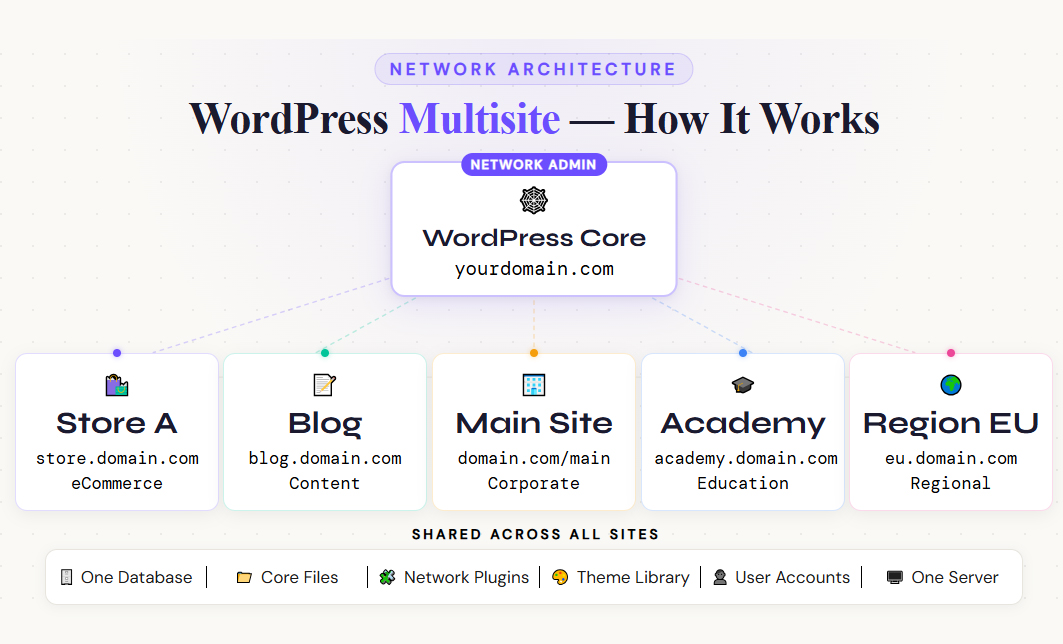
WordPress Multisite is a built-in WordPress feature that allows you to create and manage a network of multiple websites from one single WordPress dashboard. Instead of installing WordPress separately for each site, you install it once and spin up as many sites as you need under one roof.
Each site in the network can have its own:
- Domain name or subdomain
- Theme and design
- Plugins and settings
- Users and administrators
- Content and media
However, all sites share the same WordPress core files, database, and server resources — managed by one Network Administrator.
WordPress Multisite was originally introduced to power WordPress.com, which hosts millions of blogs on a single WordPress installation. Today it powers everything from university networks and news publications to SaaS platforms and agency portfolios.
Who Should Use WordPress Multisite?
WordPress Multisite is not for everyone. It’s a powerful but complex feature best suited for specific use cases.
You should consider Multisite if you:
- Manage multiple websites for clients as a developer or agency
- Run a university or organization with department-level subsites
- Operate a news or media network with regional editions
- Build a SaaS product where each user gets their own site
- Run multiple eCommerce stores under one brand umbrella
- Want to share themes and plugins across several related sites
You should avoid Multisite if you:
- Only run one or two websites
- Need sites with completely different hosting environments
- Are a beginner with limited WordPress experience
- Need each site to have independent WordPress core updates
WordPress Multisite: Key Concepts to Know
Before setting up Multisite, understand these fundamental terms:
Network Admin — The super administrator who manages the entire Multisite network. They control plugins, themes, and all sites.
Sub-sites — The individual websites within the network. Each can be managed by its own site administrator.
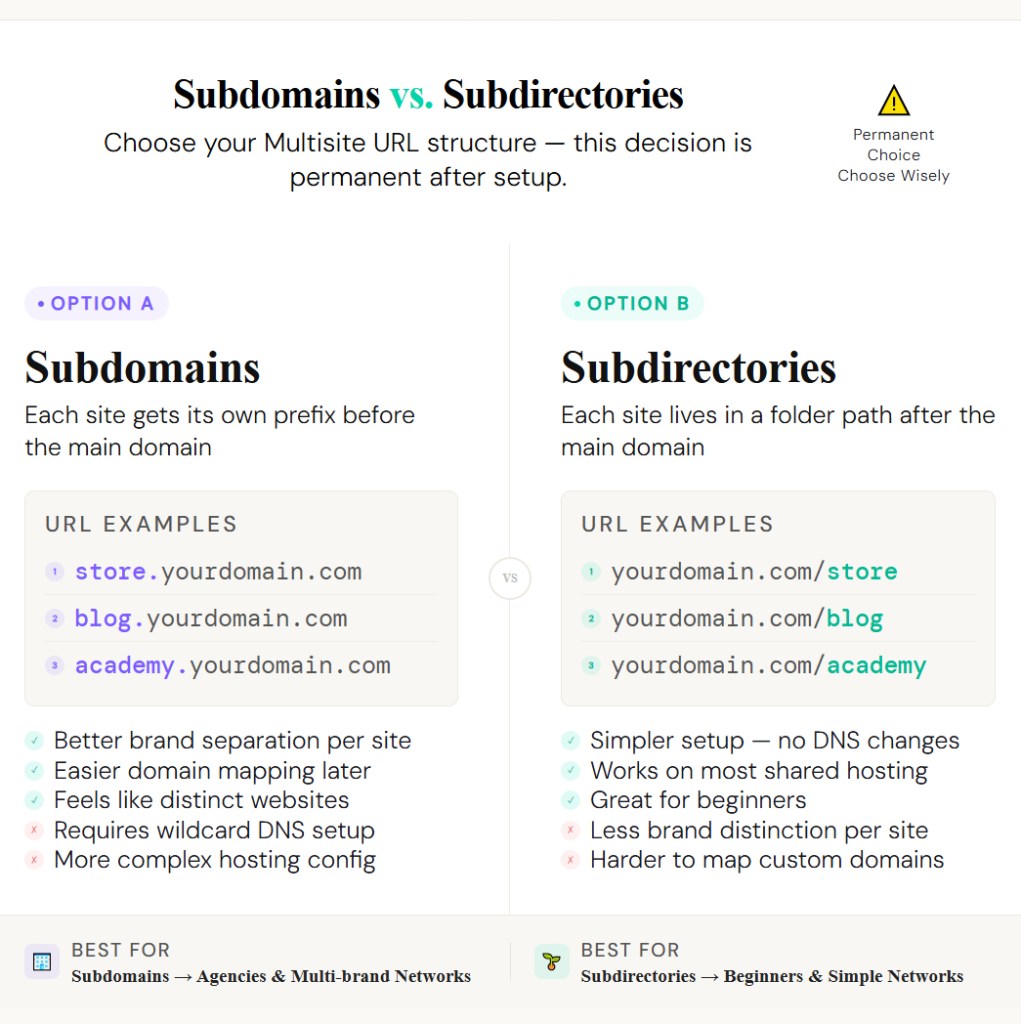
Subdomains vs. Subdirectories — You can structure your network in two ways:
- Subdomains: site1.yourdomain.com, site2.yourdomain.com
- Subdirectories: yourdomain.com/site1, yourdomain.com/site2
Network-activated Plugins — Plugins activated at the network level apply to all sites simultaneously.
Per-site Themes — The Network Admin controls which themes are available, but individual site admins can choose from those available options.
How to Set Up WordPress Multisite in 2026 (Step-by-Step)
Step 1: Back Up Your Existing WordPress Site
Before making any major changes to your WordPress installation, always create a full backup. Use a plugin like UpdraftPlus or All-in-One WP Migration to back up your files and database.
If something goes wrong during the Multisite setup, you’ll want a clean restore point to fall back on.
Step 2: Check Your Server Requirements
WordPress Multisite requires:
- WordPress 3.0 or higher (any modern version works)
- Pretty Permalinks enabled — Go to Settings → Permalinks and choose any option other than Plain
- A compatible hosting environment — Most shared and managed WordPress hosts support Multisite, but verify with your host first
If you’re using subdomain-based Multisite, you’ll also need to enable wildcard subdomains on your server. Contact your hosting provider to confirm this is supported before proceeding.
Step 3: Enable WordPress Multisite in wp-config.php
To activate the Multisite feature, you need to edit your WordPress configuration file.
Access your site’s files via FTP (using FileZilla) or your hosting provider’s File Manager.
Find the file named wp-config.php in your WordPress root directory and add the following line of code above the line that reads /* That's all, stop editing! Happy publishing. */:
define( 'WP_ALLOW_MULTISITE', true );
Save the file and re-upload it to your server. This single line unlocks the Multisite setup panel inside your WordPress dashboard.
Step 4: Install the WordPress Network
After saving your wp-config.php changes, go back to your WordPress dashboard. You’ll now see a new menu item under Tools → Network Setup.
Click on Network Setup and choose your network structure:
- Sub-domains — Best for distinct brand identities per site (requires wildcard DNS)
- Sub-directories — Simpler setup, no DNS changes needed, great for beginners
Fill in your Network Title (the name of your network) and your Network Admin Email, then click Install.
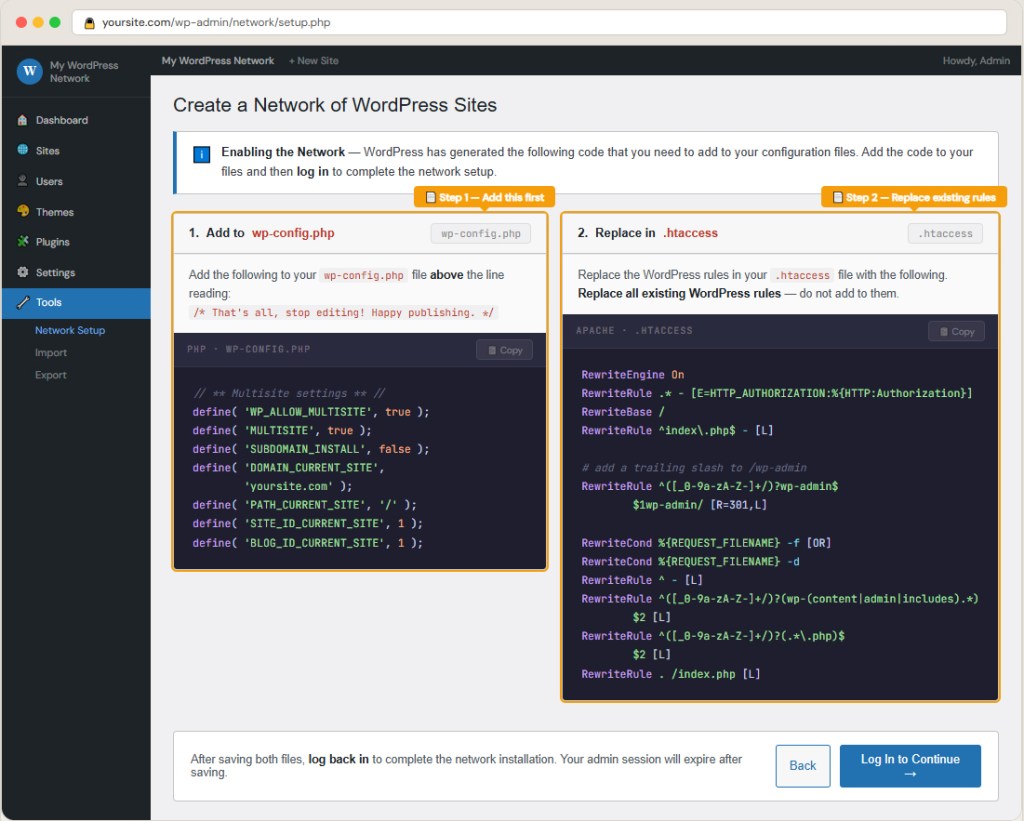
WordPress will generate two blocks of code you need to add to your configuration files. Follow the on-screen instructions carefully.
Step 5: Update wp-config.php and .htaccess
WordPress will provide you with specific code snippets to add to two files:
In wp-config.php, add the provided code block above the /* That's all, stop editing! */ line. It will look something like this — containing your network details, multisite flags, and domain configuration.
In .htaccess, replace the existing WordPress rewrite rules with the new block provided by WordPress. This is critical for proper URL routing across your network.
Save both files, re-upload them, and then log back into your WordPress dashboard. You’ll be prompted to log in again after the changes take effect.
Step 6: Access the Network Admin Dashboard
Once logged back in, you’ll notice a new item in the top admin bar: My Sites → Network Admin.
This is your Network Admin Dashboard — the control center for your entire Multisite network. From here you can:
- Add and manage all sites in the network
- Install and network-activate plugins
- Control which themes are available
- Manage all network users
- Monitor site activity across the network
Spend some time exploring this dashboard before adding your first sub-site.
Step 7: Add Your First Sub-Site
To add a new site to your network, go to My Sites → Network Admin → Sites → Add New.
Fill in the following details:
Site Address — The URL path for this site (subdomain or subdirectory depending on your setup)
Site Title — The name of this individual site
Site Language — Choose the language for this site
Admin Email — The email address of the administrator for this specific site. You can assign an existing user or create a new one.
Click Add Site and your new sub-site is live. Repeat this process for every site you want to add to your network.
Step 8: Configure Themes and Plugins for Your Network
Themes: Go to Network Admin → Themes to see all installed themes. To make a theme available to sub-sites, click Network Enable next to the theme. Site administrators can then choose from network-enabled themes for their own sites.
Plugins: Go to Network Admin → Plugins. You can either:
- Network Activate a plugin to apply it to all sites simultaneously
- Leave it deactivated at the network level so individual site admins can activate it themselves
Be thoughtful about which plugins you network-activate. Some plugins are not built to work well in a Multisite environment and can cause conflicts.
Step 9: Map Custom Domains to Sub-Sites (Optional)
If you want each site in your network to have its own unique domain (e.g., clientone.com instead of yourdomain.com/clientone), you’ll need domain mapping.
In 2026, the best way to handle this is through the Mercator plugin or your hosting provider’s built-in domain mapping tools. Hosts like Kinsta and WP Engine offer streamlined domain mapping for Multisite networks.
You’ll also need to update DNS records for each mapped domain to point to your server’s IP address. This typically takes up to 24–48 hours to propagate globally.
Step 10: Test Your Network Thoroughly
Before inviting users or going live, run through these checks:
- Visit each sub-site and confirm it loads correctly
- Test the login and registration flow for new users
- Verify that network-activated plugins work across all sites
- Confirm theme switching works at the site level
- Test media uploads on individual sub-sites
- Check that email notifications are being sent correctly
Fix any issues before promoting your network publicly.
WordPress Multisite: Pros and Cons
Pros
- Centralized management — Update WordPress core, themes, and plugins once for all sites
- Shared resources — Lower hosting costs compared to running separate installations
- Easy site creation — Spin up a new site in minutes
- Consistent branding — Enforce themes and plugins across all sites from one place
- User management — Users can access multiple sites with one account
Cons
- Shared server resources — One slow site can affect the whole network
- Plugin compatibility issues — Not all plugins work correctly in Multisite
- Complex troubleshooting — Diagnosing issues is harder than on a single site
- Limited host support — Not all hosting providers fully support Multisite
- Security risk — A single vulnerability can potentially expose the entire network
Best Hosting for WordPress Multisite in 2026
Not every host handles Multisite equally. These providers are well-known for strong Multisite support:
- Kinsta — Managed WordPress hosting with excellent Multisite performance
- WP Engine — Built-in tools for managing Multisite networks
- SiteGround — Affordable and reliable with Multisite compatibility
- Cloudways — Flexible cloud hosting ideal for growing networks
- Pressable — Purpose-built for WordPress with Multisite support
Avoid bargain shared hosting for Multisite. The shared resource model means performance issues on one site can ripple across your entire network.
Common WordPress Multisite Mistakes to Avoid
- Skipping the backup — Always back up before enabling Multisite. There’s no easy undo.
- Choosing the wrong network structure — Subdomains vs. subdirectories is a permanent choice. Think carefully upfront.
- Network-activating incompatible plugins — Test plugins on a single site first before pushing them network-wide.
- Using cheap shared hosting — Multisite networks need reliable, scalable hosting to perform well.
- Neglecting security — One compromised site can affect all sites. Use a network-level security plugin like Wordfence.
Conclusion: Is WordPress Multisite Right for You?
WordPress Multisite is one of the most powerful and underused features in the WordPress ecosystem. When used in the right context — managing client networks, running multi-brand eCommerce, or building educational platforms — it’s an absolute game changer.
But it comes with real complexity. If you’re running just one or two websites, a standard WordPress installation will always be simpler and easier to manage.
If you’ve decided Multisite is the right move, follow the steps in this guide carefully, choose a reliable host, and always keep backups. Once your network is running smoothly, you’ll wonder how you ever managed multiple sites any other way.


Leave a Reply