
If you would to increase upload file size in WordPress site, then this article is going to help you to increase file size limit in a WordPress site. Sometimes it can be a problem for us if WordPress doesnt permit to upload a big file / photo or something like that. So thats why Im going to share this with you.
There are several ways to archive that. Im going to share all of the possible way to do that.
How youll check maximum file size limit of your WordPress site.
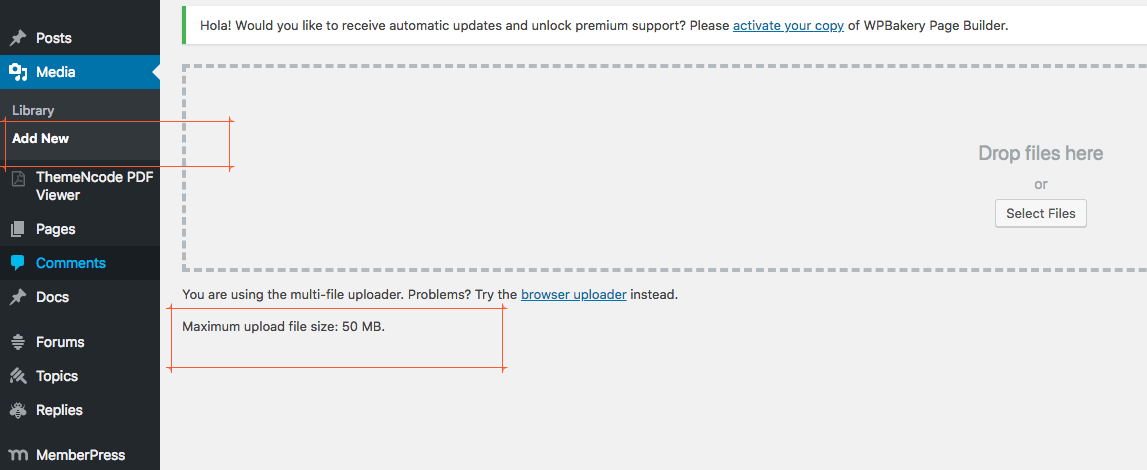
If you go to media ? add new then youll see your maximum file size limit. Also if you want to upload a feature image for your blog post you can also see that there.
First of all Ill share how to do that without using any extra plugin then Ill share how to do that easily with a plugin .
How to increase upload file size in your WordPress site without plugin
1 : Theme main function file ( functions.php )
On some of WordPress site by just adding some line codes in functions.php ( its a file of theme youll see that in your Theme ) . so what youll need to is just copy the codes and past in your functions.php
@ini_set( 'upload_max_size' , '64M' );
@ini_set( 'post_max_size', '64M');
@ini_set( 'max_execution_time', '300' );
Note : you can define your size, Ive just used mine as a sample.
2 : htaccess file
You can easily increase your file size limit by just adding some lines of code in .htaccess file.Youll find the .htaccess file in your sites root folder, just edit the file and add the the codes below,
php_value upload_max_filesize 64M
php_value post_max_size 64M
php_value max_execution_time 300
php_value max_input_time 300
3 : PHP.INI ( edit an existing file or create one )
If youve php.ini file then open it and add these line of code in that file. If you dont have one then please create one. Youll need to do that in root directory of your website. After creating one youll need to copy and past the codes below .
upload_max_filesize = 64M
post_max_size = 64M
max_execution_time = 300
How to do that with a plugin ( recommended only for who doesnt know how to edit a file in WordPress )
First of all install a plugin called Increase max upload filesize and youll have an option in your dashboard called upload max filesize click on this and youll see a field where you can input size in bytes such as: 1024000 bytes=1MB .
So if you would like to increase 100MB then calculate the bytes into MB, and then enter the value in the field. Thats it

Note : you can increase upto 250MB through this plugin.



Leave a Reply