
WordPress is one of the most popular and resourceful platforms to make your dream Website live. WordPress makes our Website experience more reliable and easier. Today we are used to doing multitasking at a time. We need to update about what were doing right now. WordPress gives us a huge chance to transfer posts and pages from one WordPress website to another. Today Im going to discuss how to transfer posts and pages from one WordPress website to another.
Why do you need to transfer posts and pages from a WordPress website to another?
First of all, you have to clarify why do you have to transfer posts and pages from one WordPress website to another. Suppose, you have two different WordPress websites. You are giving different types of services from these two websites. But you want to transfer pages and posts from one WordPress to another. Or anyhow you need to shut down one of these. Then what will be the safe way to do this transfer? Dont worry, WordPress provides us a default way to transfer posts and pages from one WordPress website to another. You can simply transfer posts, pages, comments, categories and custom fields (like post status, data, permalinks, ping status, etc).
Note: To do this, To do this, please make sure, youve WordPress access to both sites.
Lets transfer posts and pages from one WordPress website to another gradually.
Export Pages/Posts:
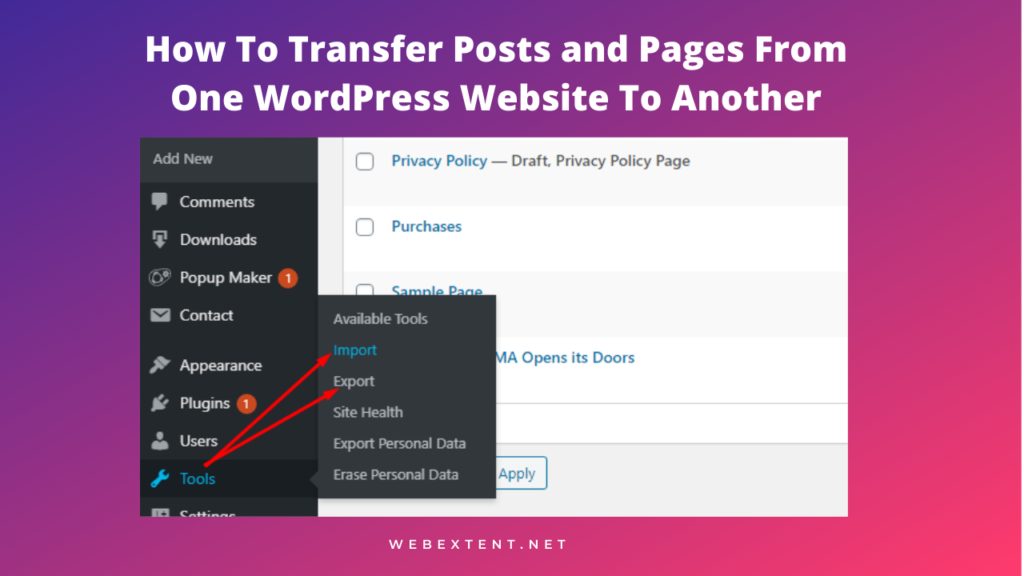
Step 1: First thing, were going to export the preferable files (posts, pages, comments, categories, and custom fields ) to transfer one WordPress Website to another. To do this please go to your WordPress Dashboard >> TOOLS >> EXPORT. Now you have to mark or select which pages or posts you need to export. Now click on the Download Export File button. Itll take a little bit of time. It depends on your file size. Itll download as an XML file. Here you have to notice one thing that is, you have to export the same type thing at once. Like you have to export all posts in a row, then you can export all pages. In a nutshell, you have to export posts, pages, etc individually.

Import Pages/Posts:
Step 2: Now were going to Import the files in the new WordPress website. To do that first, you have to go to your other WordPress website. Go to your WordPress Dashboard then click on TOOLS. Now select IMPORT. After clicking you have a preview of import lists. Here, you have to choose WORDPRESS, now click on INSTALL NOW under WordPress. It may take some time, after finishing the installation there will be a RUN IMPORTER option. Click on RUN IMPORTER.

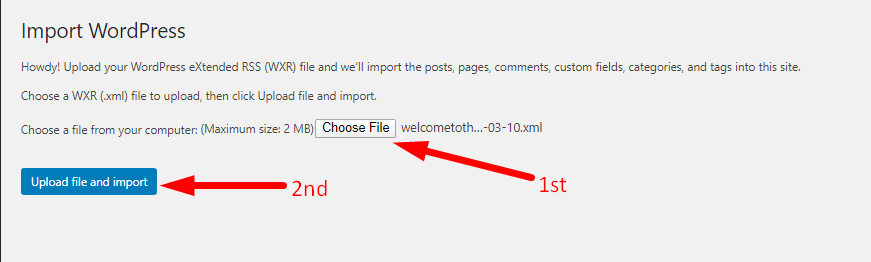
Step 3: Now youve to choose the XML file which youve downloaded earlier. Now click on CHOOSE THE FILE to choose it. Then click on Upload And Import button.
Step 4: Now you have to set an Author for the newly created website. You can set a new person or you can make it the default one. If you need any attachments then click on Download and Import Attachments. Then finally click on the Submit button.

Step 5: If you want to Import Custom Post type from one of your WordPress website to another, then make sure that you used the exact same post type in the new WordPress website. Besides, all procedures are the same as well as brief.
Congratulations! Youve done amazing work. If you have any questions or problems with it then feel free to share with me. Put a comment, Ill help you to get out of this.
Related Blog: How To Create An Individual Page for Your Blog Post.
Follow Us on YOUTUBE
Stay connected with the WebExtent team for more innovative and creative WordPress tricks.
We are available in:
Facebook: https://facebook.com/webextent.net/
Instagram: https://www.instagram.com/webextentofficial/
Twitter: https://twitter.com/WebExtent
Regards.


Leave a Reply