

Do you want to show image icons in the WordPress nav manus? In this article, we will show you how to add image icons with WordPress navigation menus.

Normally by default, there is no way to show menu Icon in navigation menus. Adding an icon to the menus makes the navigation menu more attractive.
Let’s jump on the tutorial on how to add image icons at the navigation menu in wordpress easily.
Adding image icons at the navigation menu using a Plugin
The process is much easier for anyone as it doesnt require any code to apply.
At first, you have to install the Menu Image plugin and activate it.
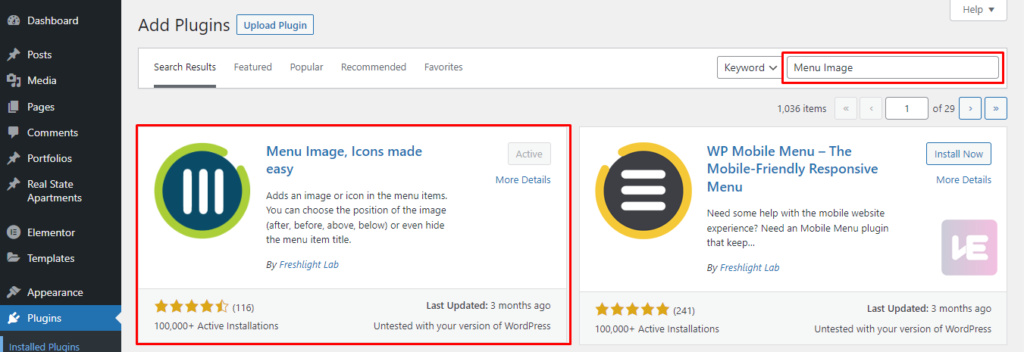
Then, you need to navigate to the Appearance » Menu page
Click on the expand icon of any menu item. You will see a button Add Image/ Icons.

When you click on this button it will show up with a pop-up with all the settings.
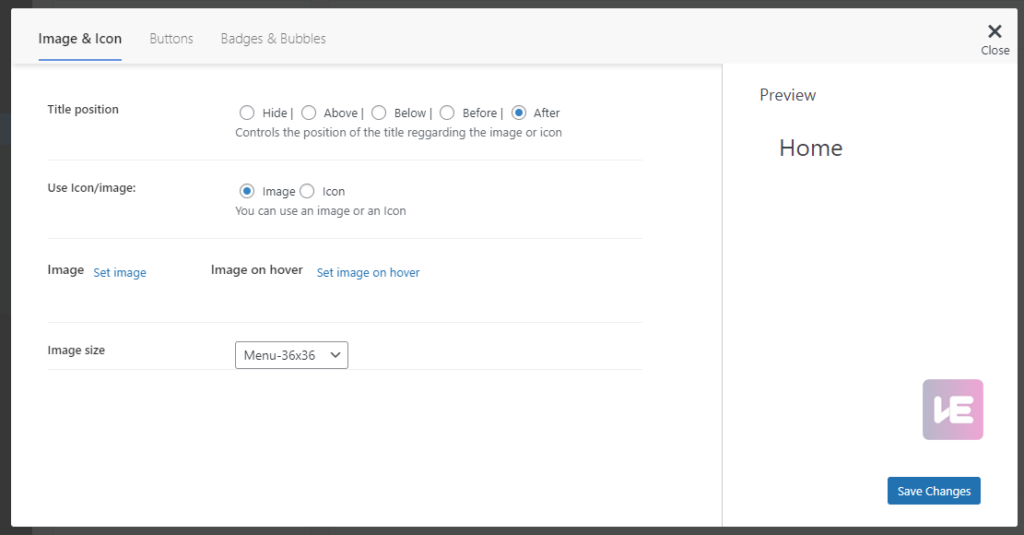
Here you will have the following options.
- Title position? It will let you control the position of the title regarding the image or icon where you want to show the icon.
( Hide | Above | Below | Before | After )
The Hide option will let you place the icons instead of the menu text.
- Use Icon/image: ? This option is for adding image or icon to the navigation menu items.
If you select the Icon field, you will have options to choose the icon from Dashicons or Fontawesome Library.
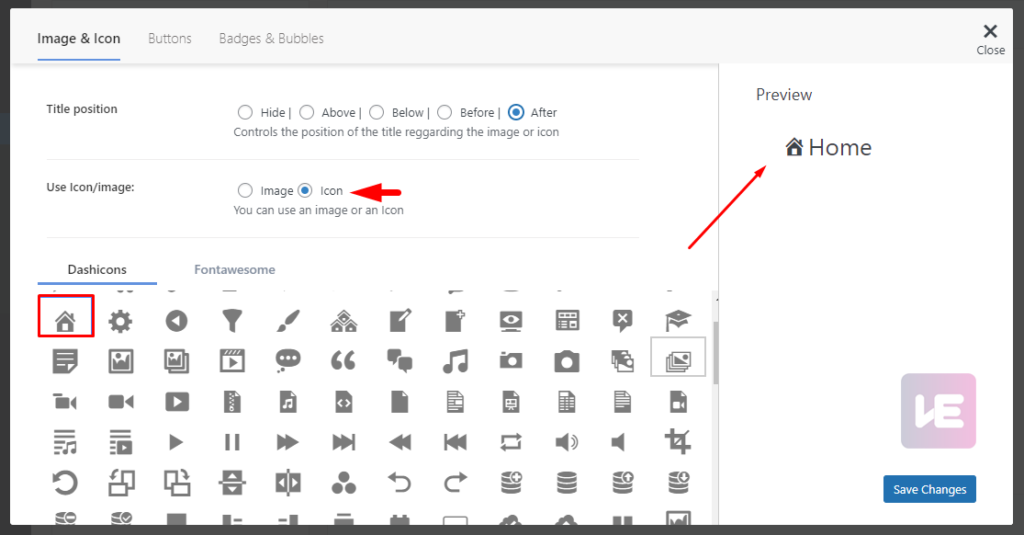
Or If you select the Image field, you will have options to upload the image directly from the WordPress Media Library.

Click on Image to upload the image. You can also set an image on hover state by uploading the image on Image on hover option.
Image size? From the Image Size dropdown you can select the size of the image uploaded for the menu icon image and image on hover
You can see the previews of the menu image or icons placement on the right side of the popup.
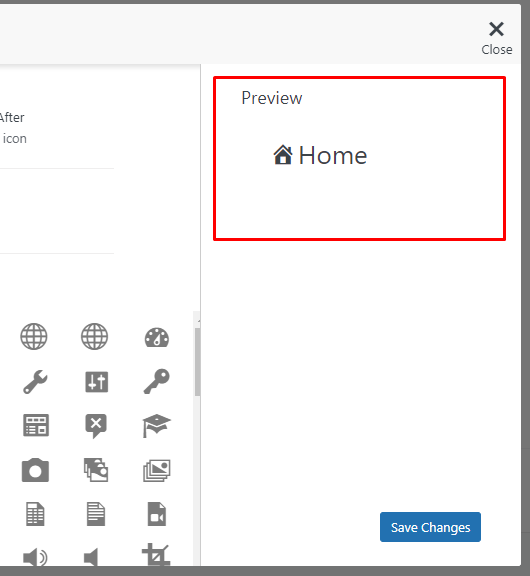
Click on the Save Changes button to save all the settings you have made so far.
Finally, In the preview, we will see image icons in navigation menus.

Hope you have got a complete idea on how to add Image Icons at Navigation Menus.
Check out our other blogs on various WordPress Plugins we have published.




Leave a Reply